Getting Started with Your Solomon Drive
Follow the steps below — no tech experience needed. Your Solomon Drive has a simple launcher for Windows and one for Mac; just plug in and double‑click.
Quick start
Plug in your Solomon Drive
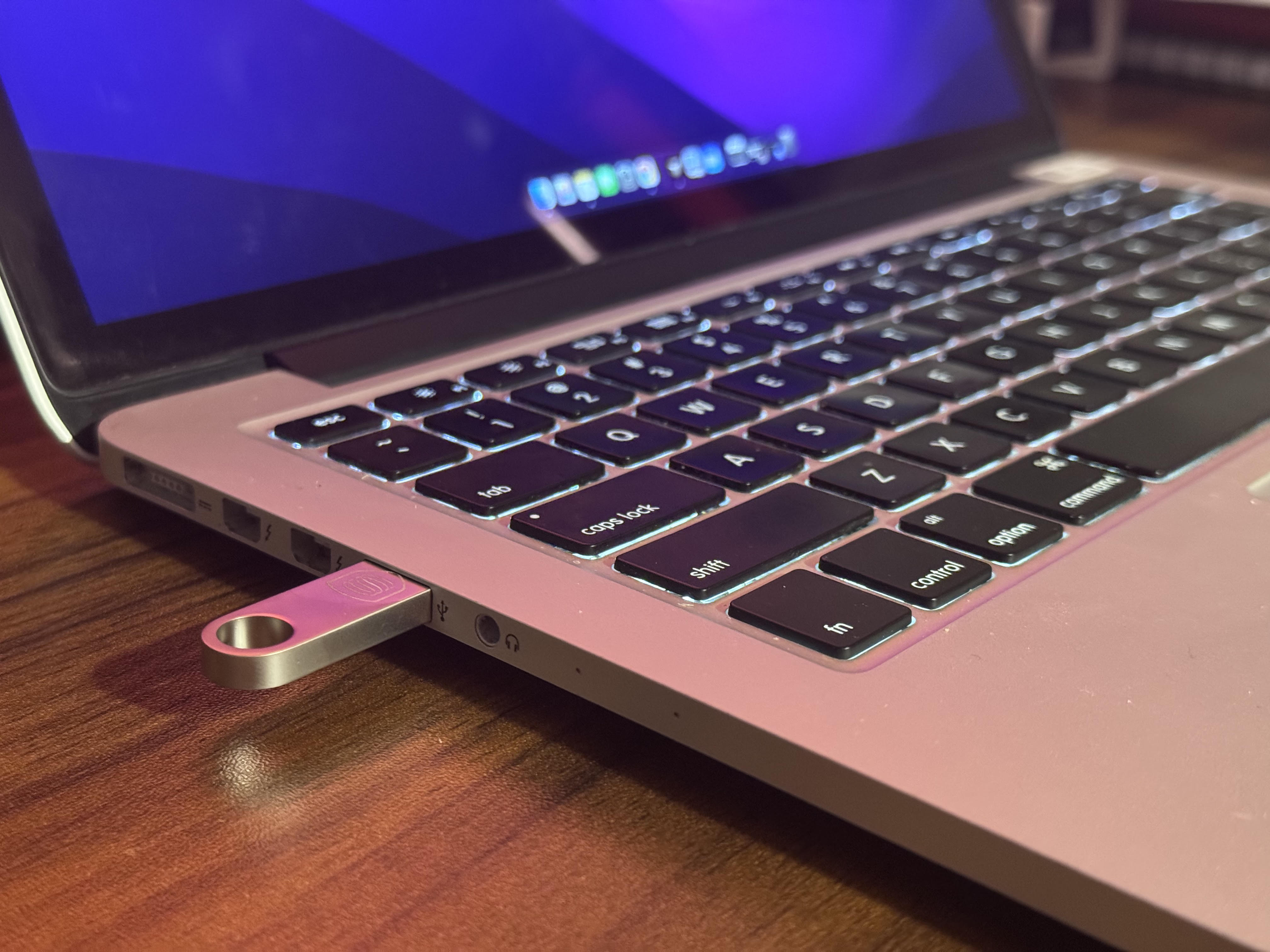
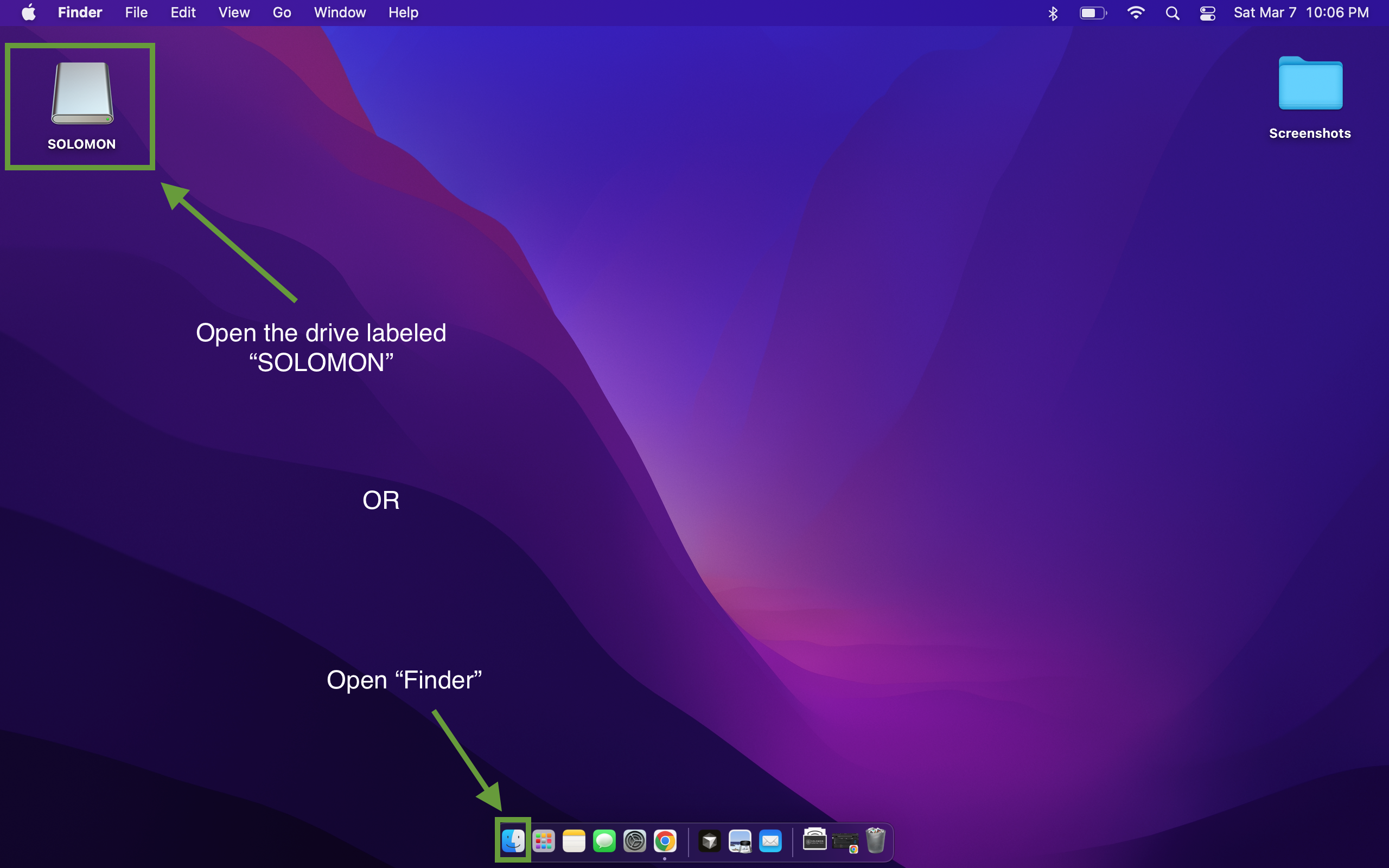
With your computer turned on, find a USB port (usually on the side or back of the computer) and plug in your Solomon Drive. Push the connector in all the way until it’s fully seated — if it’s only partway in, your computer may not detect the drive. You don't need to install anything or be connected to the internet. In a moment, your computer will detect the drive. On Windows it will appear in File Explorer (folder icon in your taskbar); on Mac it will appear on your desktop or in the sidebar of Finder (the smiling face icon).
Open the Solomon Drive Interface
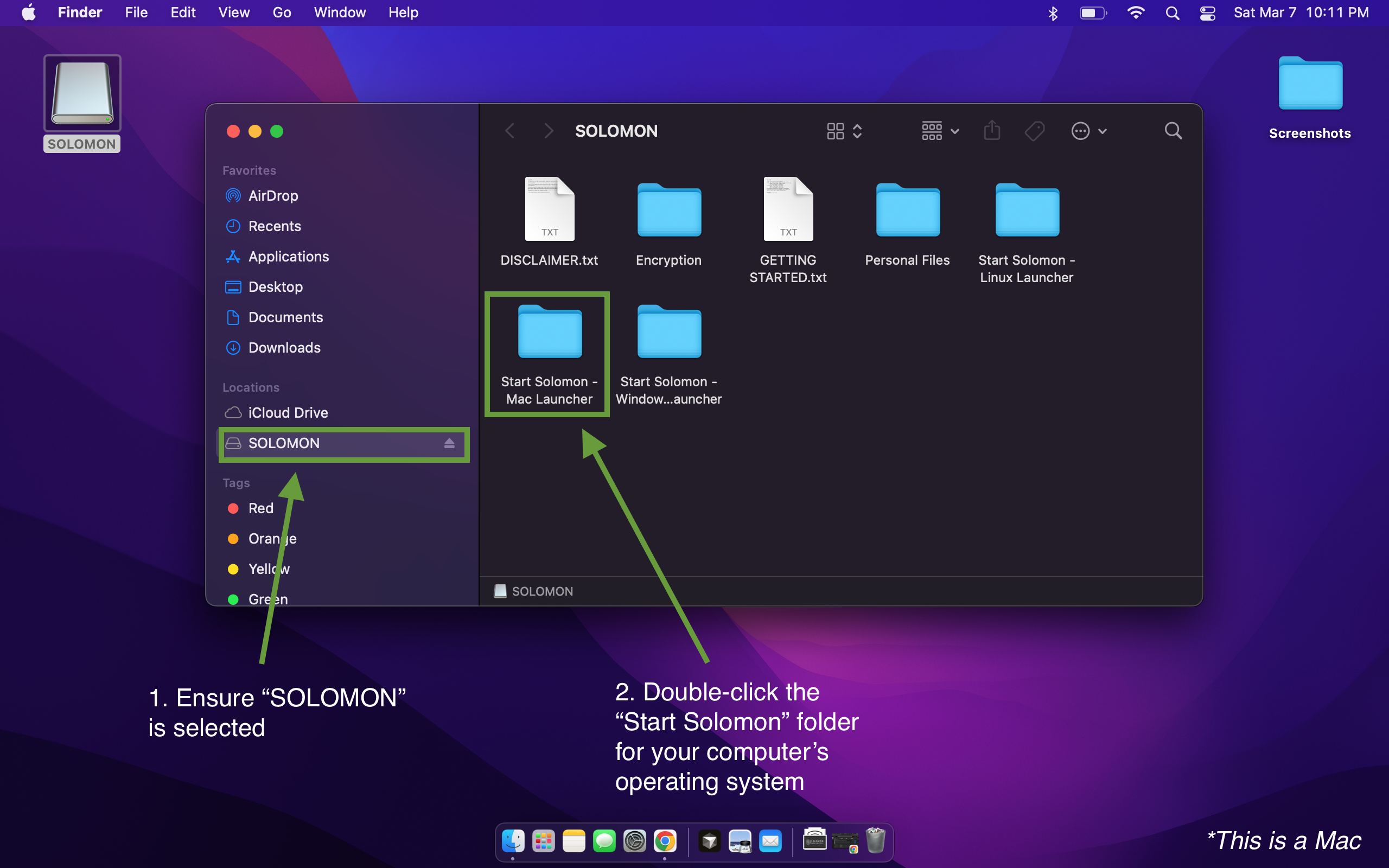
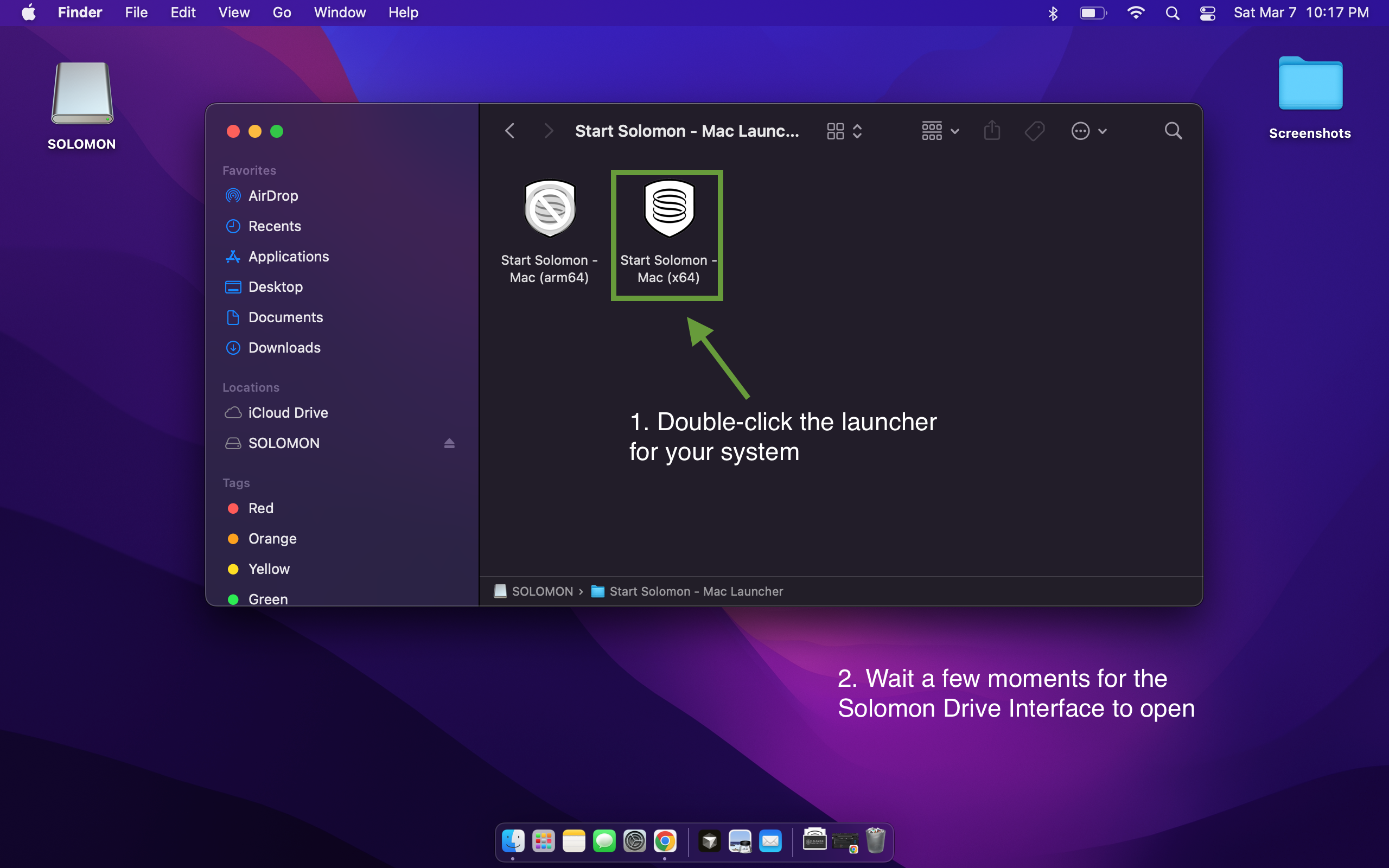
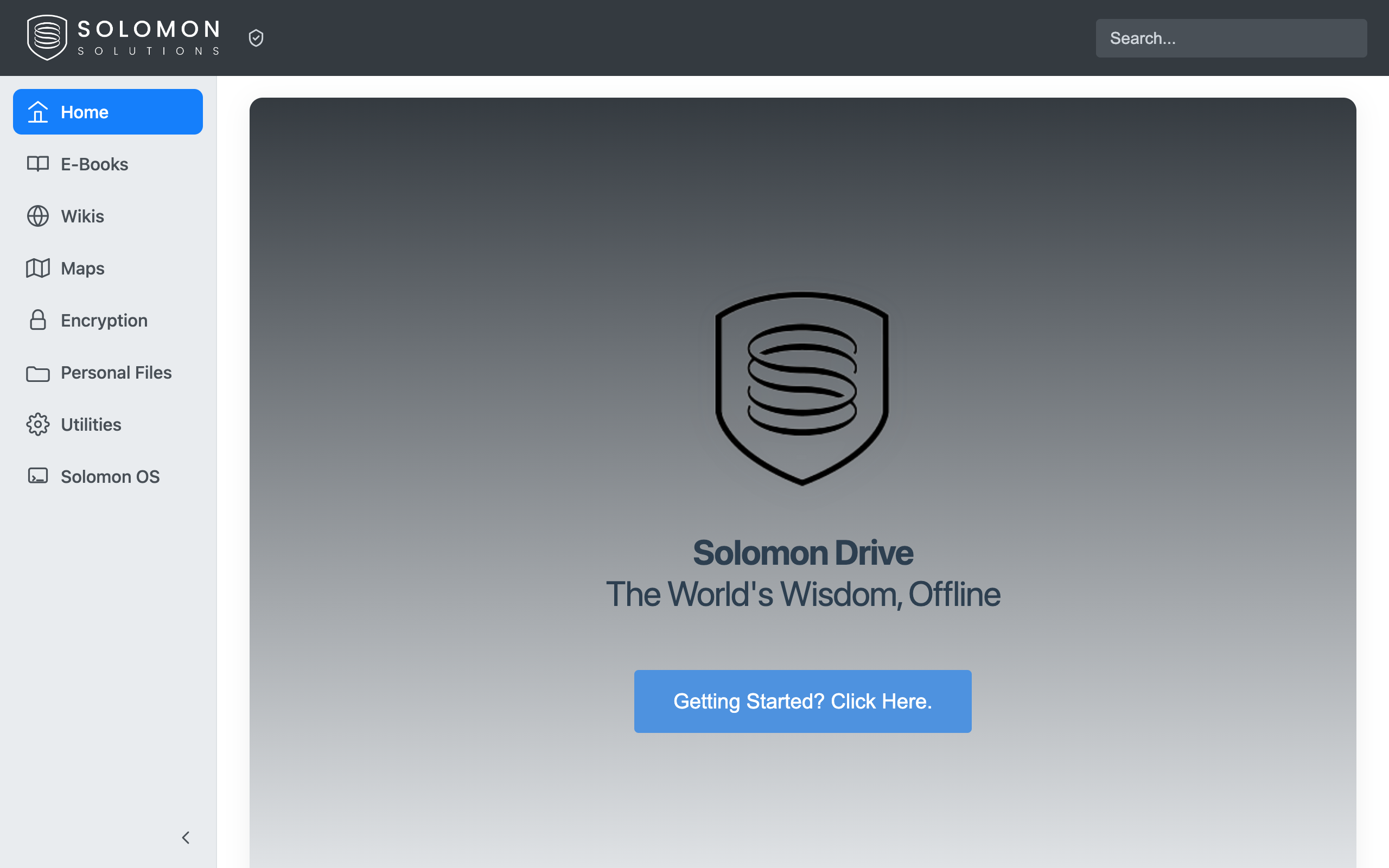
Click the drive labeled SOLOMON to open it. Inside you'll see multiple folders — one for each operating system: Windows, Mac, and Linux. Enter the folder and double‑click the launcher that matches your computer. After you double‑click, give the Solomon Drive Interface time to open — on some machines, especially Macs, startup can take a little longer while your computer gets everything ready. That’s it once it’s open: you don’t need to sign in or create an account. See Startup time below for why this happens and when to contact us.
Browse or search
Use the search box or click through the categories to find what you need. Everything on the Solomon Drive works offline. No account, no password, no internet required.
Startup time: be patient
The Solomon Drive is engineered to run flexibly across many types of computers — Windows, Mac, Linux, and more. That flexibility means startup can take a bit longer on some systems, and Macs often need a little extra time compared to many Windows PCs.
A slower launch usually means your computer is doing the work to run the drive safely — please wait and let the interface finish loading instead of clicking again and again.
Mac: If Finder stays sluggish while browsing the whole drive (not only the first launch), see the Spotlight FAQ — macOS is very slow to read or browse the Solomon Drive (Spotlight indexing) — in Troubleshooting below.
If something seems unusual — for example, it never opens after several minutes, keeps crashing, or behaves in a way that doesn’t feel right — let us know. Email support@solomonsurvivaltech.com with what you’re seeing (and your Mac or PC model if you know it) so we can help.
Always eject the Solomon Drive before unplugging
When you're done, safely eject the drive before you remove the USB cable. Unplugging while the computer is reading or writing can damage files or the drive itself.
On Windows, click the ^ (show hidden icons) in the taskbar if needed, then the USB icon. Choose Eject for the Solomon drive (it may appear as SOLOMON). Wait until Windows says it's safe to remove.
On Mac, open Finder and click the eject icon next to SOLOMON in the sidebar (or drag the drive to the Trash — it ejects the drive; it does not erase it). Wait until the drive disappears from the desktop or sidebar before unplugging.
Troubleshooting
Updates and support
We may offer updates to the content on the Solomon Drive in the future. If we do, we’ll let you know by email and post the details here.
Need help?
support@solomonsurvivaltech.comJust email us — we'll take care of you.